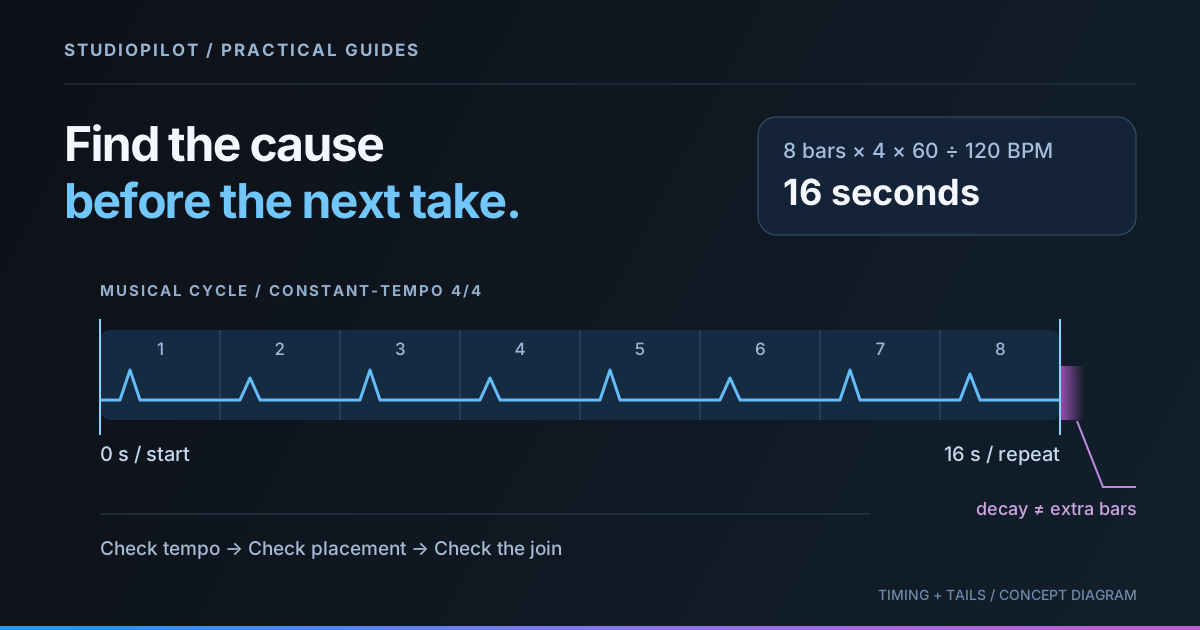
First identify the symptom: does the part start late, gradually drift, restart at the wrong place, or click only at the join? Those are different problems. Confirm the project tempo and musical loop length, then inspect the start transient and the end tail. Regenerating before checking those four things can leave the original problem untouched.
In StudioPilot, the loaded context, Tempo, and chosen window influence the next part. Once you export a take, trimming, moving, warping, crossfading, and automation are edits in your DAW or audio editor. This guide does not describe those editing tools as built-in StudioPilot controls.
Identify the timing symptom before changing anything
- Consistently late or early: the offset stays similar across the phrase. Check placement, silence before the first useful transient, and any intentional pickup.
- Increasing drift: the part is close at the beginning but farther out later. Check source tempo, DAW tempo, and automatic stretching or tempo interpretation.
- A wrong restart: the groove works until the loop jumps to its beginning. Check bar count and the exact repeat boundary.
- A click or chopped decay: the rhythm may be correct, but the edit boundary is audible. Inspect the waveform and the last note's tail.
Keep a copy of the original file before editing. Change one setting at a time, and listen through at least two repeats so the boundary is actually tested.
Calculate the musical length in 4/4
For a constant tempo measured in quarter-note beats per minute, a 4/4 bar contains four beats. The musical duration is:
seconds = bars × 4 × 60 / BPM
At 120 BPM, one beat lasts 0.5 seconds. Eight bars contain 32 beats and last 16 seconds; sixteen bars last 32 seconds. At 100 BPM, eight bars last 8 × 4 × 60 / 100 = 19.2 seconds. This arithmetic describes a musical cycle, not a guarantee that a downloaded file ends at that exact sample.
A file may include silence, a pickup, or a reverb tail outside the cycle. Do not shorten a 16.4-second file to 16 seconds merely because eight bars at 120 BPM should repeat there: inspect what occupies the extra 0.4 seconds first. It may be a useful decay rather than an additional fraction of a bar.
The formula assumes constant-tempo 4/4. Other meters or tempo changes need a different calculation. A swing feel changes the placement of subdivisions; it does not automatically change the duration of the bar.
Check context and Tempo before generating
- Confirm the DAW grid. Listen with a metronome and check several musical landmarks. A detector reading can be a useful clue, but a half-time or double-time interpretation is possible.
- Check StudioPilot's Tempo. The current workflow uses a whole-number BPM. In the plugin it starts from the DAW; check whether you have manually changed it. Put tempo in the Tempo control rather than relying on a phrase in the prompt.
- Inspect the host window. The documentation describes setting a loaded clip's window before the first generation; later layers inherit that window. A window starting halfway through a phrase can create a confusing reference.
- Use a clear section. A short clip with a recognizable downbeat is easier to evaluate than audio with a long free-time introduction.
See the Tempo and host-window documentation and audio analysis feature. If your source performance changes tempo, a single BPM value cannot describe every moment. Prepare a suitable section in your DAW rather than expecting a prompt to solve a changing grid.
Separate a late start from gradual drift
Place the exported take against the same context in your DAW. Compare a strong event near the beginning with another near the end. If both are late by a similar amount, move the clip or adjust its start marker. Keep any deliberate pickup: the first visible sound is not necessarily the first downbeat.
If the difference grows, inspect the DAW's imported-file tempo and stretching settings. A file can be interpreted at the wrong source BPM even when the session tempo is correct. Correct that interpretation before stretching by eye. Use your DAW's appropriate time-stretch mode only when needed, and listen for softened attacks or other artifacts afterward.
Some takes have inconsistent internal timing rather than one simple offset or tempo error. Small phrase edits may help; a new A/B choice or a revised generation may be more useful when the performance would need extensive repair. A prompt is not a sample-accurate timing command.
Repair the repeat boundary without killing the tail
Set the DAW repeat region to the intended bar count and listen across its end. Do not let an automatic “loop the whole file” option turn a reverb tail into extra beats on every cycle. Decide separately where the musical phrase repeats and how its decay should continue.
For a pad or sustained instrument, duplicate the phrase on another track or region and let the previous tail overlap where appropriate. For a tight drum or bass loop, a tail overlap may smear the next attack. Choose the edit by listening to the transition, not by assuming that a longer fade is always smoother.
A click can occur when a cut creates a sudden waveform jump. In your DAW, try a very short fade or crossfade around the edit and adjust its shape by ear. A zero crossing can be helpful, but it is not a complete seam test, especially for stereo audio. Preserve the first transient instead of fading away the attack you wanted.
Verify the finished loop in context
- Listen across multiple joins, with the original rhythm audible.
- Check both the start and end after changing any warp or stretch setting.
- Compare levels so a louder edit does not win by default.
- Export a test and audition that file, including its first and final samples.
The FL Studio workflow guide explains bringing generated audio into an arrangement; the Ableton guide covers the same handoff there. These are places to finish the audio, not reasons to chase every edit with another generation.
When timing is already sound but the part is too busy, revise its musical role using the instrument prompt examples. When a vocal is running out of room, shorten or rephrase it using the lyric-writing checklist. Fix the cause you can actually hear.
Make your next part with StudioPilot
Generate instrument loops and vocals in the browser or your DAW. Compare takes and export the audio. Try the guided tutorial, then choose a plan for your own sessions.
Start for $1